
There is no traditional email/password login for the India e-Visa portal. Instead, you use your Application ID (from your confirmation email) and passport number to check status, complete partial applications, verify payments, print your ETA, and re-upload documents at indianvisaonline.gov.in. This guide explains exactly how each portal function works, what credentials you need, and what to do if something goes wrong.
How the India e-Visa Portal Works
Unlike most visa systems that require creating an account with email and password, the Indian government’s e-Visa portal uses a simpler approach. When you start an application, the system generates a unique Application ID. You use this ID – along with your passport number and a CAPTCHA – to access all portal functions.
The portal is located at indianvisaonline.gov.in/evisa/tvoa. From the main e-Visa page, you will see several quick-access tabs at the bottom of the screen.
| Portal Function | What It Does | Required Information |
|---|---|---|
| Apply here for e-Visa | Start a new application | Passport details, travel info, photo |
| Complete Partially Filled Application Form | Resume a saved application | Application ID + Passport No. |
| Verify Payment / Pay e-Visa Fee | Check or retry payment | Application ID + Passport No. |
| Print e-Visa Application | Download your submitted form | Application ID + Passport No. |
| Check your Visa Status | See if ETA is granted | Application ID + Passport No. + CAPTCHA |
| Reupload Data | Fix rejected documents | Application ID + Passport No. |
Every function that requires you to return to the portal uses the same two-credential approach: Application ID plus passport number.
Where to Find Your Application ID
Your Application ID is generated the moment you begin filling out the e-Visa form. You will see it on screen immediately after starting a new application. The Indian government also sends it to the email address you provided during the application process.
The Application ID typically starts with a letter followed by a sequence of numbers (for example, X2607E012345). Keep this ID safe – it is the only way to return to your application or check its status.
If you lose your Application ID, check your email inbox and spam folder for a message from the Indian visa system. The subject line usually contains your Application ID or a reference to your e-Visa application.
How to Check Your India e-Visa Status
Checking the status of your India e-Visa application takes about one minute. Follow these steps:
- Go to the e-Visa portal at indianvisaonline.gov.in/evisa/tvoa
- Scroll to the bottom of the page and click “Check your Visa Status”
- Enter your Application ID in the first field
- Enter your Passport Number in the second field
- Complete the CAPTCHA (type the characters shown in the image)
- Click Submit
The system will display one of the following statuses:
| Status | What It Means | Next Step |
|---|---|---|
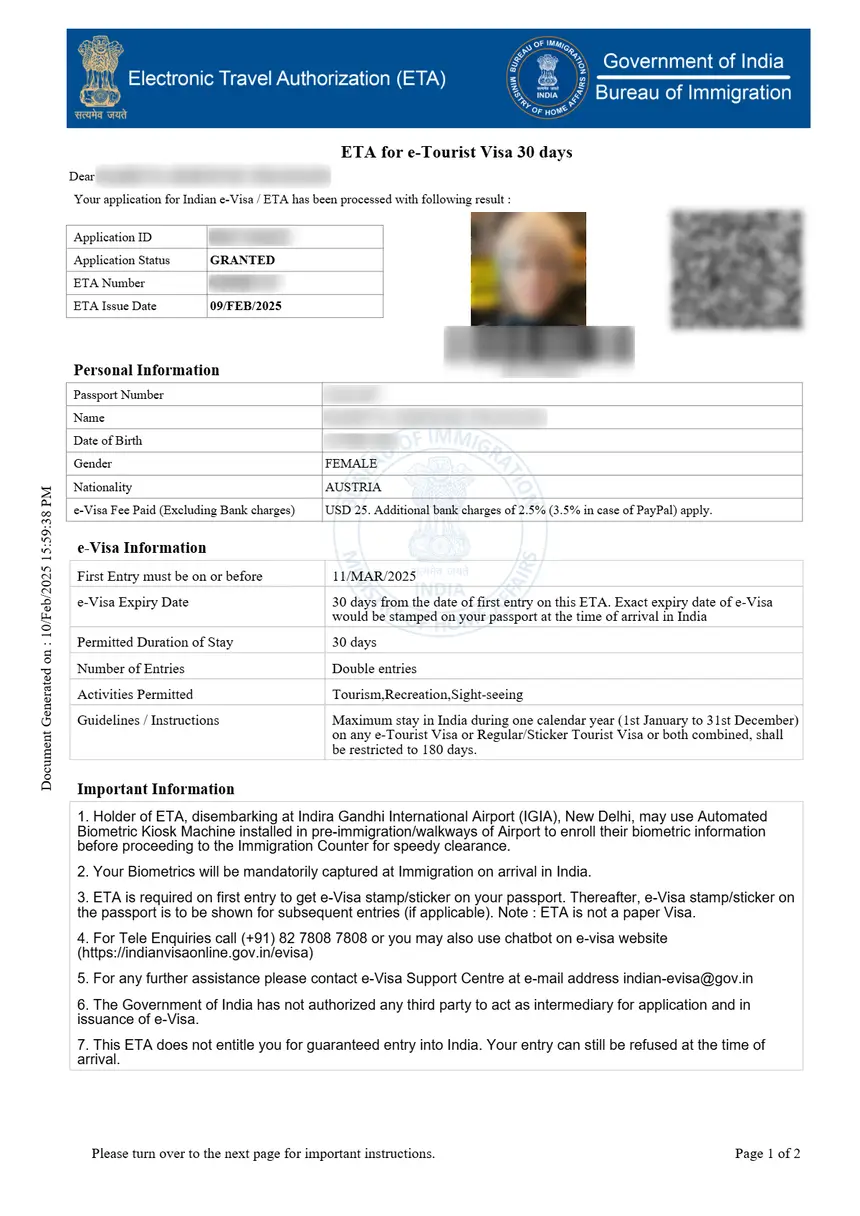
| Granted | Your e-Visa is approved | Print your ETA and carry it when traveling |
| Pending | Application is still being reviewed | Wait and check again in 24-48 hours |
| Rejected | Application was denied | Review the reason and consider reapplying |
| Re-upload | Documents need to be resubmitted | Use the Reupload Data function |
If your status shows “Granted,” you can immediately print your Electronic Travel Authorization (ETA). For more details on downloading and printing, see our guide on how to download your India e-Visa.
How to Complete a Partially Saved Application
If you started your application but did not finish it, you can pick up where you left off:
- Go to the e-Visa portal main page
- Click “Complete Partially Filled Application Form” at the bottom
- Enter your Application ID and Passport Number
- Complete the CAPTCHA
- Click Submit to resume your application
The system saves your progress automatically as you move between form sections. You can return as many times as needed, but note that your session may expire after a period of inactivity. If you cannot retrieve a partially saved application, you may need to start a new one.
For a step-by-step walkthrough of the entire application form, read our Indian Visa Application Form guide.
How to Verify or Retry Payment
If your payment failed or you want to confirm the payment went through:
- Go to the e-Visa portal
- Click “Verify Payment / Pay e-Visa Fee” at the bottom
- Enter your Application ID and Passport Number
- Complete the CAPTCHA
- Click Submit
The system will show whether your payment was successful. If not, it will give you the option to retry using a credit card, debit card, or payment wallet. The processing fee is 2.5% on top of the base e-Visa fee.
For a full breakdown of fees by visa type and duration, see our India e-Visa fees guide for US citizens.
How to Re-upload Documents
If the Indian visa authorities find that your photo or passport scan does not meet their requirements, they will send you an email asking you to re-upload the documents. You typically receive this notification within 24 hours of submission.
To re-upload:
- Go to the e-Visa portal
- Click “Reupload Data” at the bottom
- Enter your Application ID and Passport Number
- Complete the CAPTCHA
- Upload the corrected documents
Common reasons for re-upload requests include a blurry passport scan, a photo with an incorrect background color, or a file that exceeds the size limit. Make sure your photo meets the India visa photo requirements and your passport scan is clear and legible.
How Long Does Status Check Take to Update?
After submitting your e-Visa application, processing typically takes 72 hours. During peak travel seasons (October to March), it can take up to 5 business days. Your status will remain “Pending” during this time.
Once a decision is made, the status changes to either “Granted” or “Rejected.” The Indian government also sends the ETA to your email address automatically, so check your inbox (and spam folder) if you see “Granted” on the portal.
If your application has been pending for more than 5 business days, you can contact the eVisa Helpdesk through the portal. The payment helpdesk numbers are:
- SBI ePay: +91-022-65361671 (24 hours, 7 days)
- Axis Bank: +91 1800-419-0073 (24 hours, 7 days)
Can I Log In and Edit My Submitted Application?
No. Once you submit your e-Visa application, you cannot edit it through the portal. The portal only allows you to check status, print the application, verify payment, and re-upload documents when specifically requested by the authorities.
If you made an error on a submitted application (wrong passport number, misspelled name, incorrect travel dates), your options are:
- Wait for the Re-upload email: If the authorities notice the error during review, they may ask you to correct it
- Apply again with a new Application ID: Start a fresh application with the correct information and pay the fee again
- Contact the eVisa Helpdesk: For urgent corrections, reach out to the helpdesk numbers listed above
This is why it is important to double-check all information before clicking Submit. Our step-by-step application guide walks through every field to help you avoid common mistakes.
Tips for Managing Your e-Visa Portal Access
- Save your Application ID immediately – Take a screenshot or write it down as soon as it appears on screen
- Check your email – The confirmation email with your Application ID may land in your spam folder
- Use the same browser – The portal works best on Google Chrome or Mozilla Firefox
- Have Adobe Acrobat Reader installed – You need it to download and print your submitted application form
- Complete the CAPTCHA carefully – The characters are case-sensitive; type exactly what you see
- Do not share your Application ID – It contains personal information linked to your passport
What If the Portal Is Down or Not Working?
The Indian e-Visa portal occasionally experiences downtime for maintenance or high traffic. If the site is not loading or you get an error when submitting your status check:
- Try again in 30 minutes to 1 hour
- Clear your browser cache and cookies
- Try a different browser (Chrome, Firefox, or Edge)
- Try accessing from a different device or network
- Disable any VPN or proxy – the portal may block certain IP ranges
If you still cannot access the portal after several hours, contact the eVisa Helpdesk. For general visa requirements before you apply, check our India visa requirements guide.
FAQs About India e-Visa Login and Status Check
Is there a username and password for the India e-Visa portal?
No. The Indian e-Visa portal does not use a traditional login system with email and password. You access all portal functions using your Application ID and passport number.
What is the Application ID format for India e-Visa?
The Application ID typically starts with a letter (such as “X”) followed by a sequence of numbers. It is generated when you begin a new application on the portal.
Can I check my India e-Visa status without the Application ID?
No. The Application ID is required to check your status on the portal. If you lost it, check your email inbox and spam folder for the confirmation message from the Indian visa system.
How do I know if my India e-Visa is approved?
Go to the e-Visa portal, click “Check your Visa Status,” enter your Application ID and passport number, and submit. If approved, the status will show “Granted” and you can print your ETA.
What does “Re-upload” mean on the India e-Visa portal?
It means the authorities need you to resubmit a document (usually your photo or passport scan) because the original did not meet their requirements. Use the “Reupload Data” function on the portal.
Can I check India e-Visa status on my phone?
Yes. The Indian e-Visa portal is compatible with Android and iOS devices. You can access all functions, including status checking, from a mobile browser.
Why is my India e-Visa still showing “Pending”?
Processing typically takes 72 hours but can take up to 5 business days during peak season. If your application has been pending for more than 5 business days, contact the eVisa Helpdesk at the portal.